Computer
The computer stores recordings, calculates effects and virtual instruments and manages all audio and MIDI tracks.

Record vocals, guitar, keyboard or a complete song idea directly on your computer: a modern recording setup can be surprisingly compact. The computer and DAW form the production centre, an audio interface connects microphones and instruments, and headphones or studio monitors let you control what you are recording. This guide explains step by step what to connect, configure and record.
For a conventional recording with a microphone or instrument, you need a computer, recording software, an audio interface and a monitoring solution. A microphone, cable or MIDI keyboard is then added according to the sound source you want to record.
The computer stores recordings, calculates effects and virtual instruments and manages all audio and MIDI tracks.
Microphones, guitars, basses and line-level sources are converted into digital audio by the interface and transferred to the recording software.
Audio InterfacesThe Digital Audio Workstation records, edits, arranges and mixes audio. It also handles MIDI and hosts virtual instruments.
Recording SoftwareClosed-back headphones are especially practical during recording. Studio monitors can later complement them for mixing and sound control.
The simplest recording path: microphone or instrument → audio interface → USB connection → computer → DAW → headphones. Once this signal path works, you can already record complete songs.
Microphones and instruments initially produce analogue audio signals. An audio interface converts these signals into digital data that can then be stored and processed by the recording software.
Voice, guitar, bass, keyboard or another sound source provides the material you want to record.
An XLR microphone input, instrument input or line input connects the source to the audio interface.
The audio interface converts the analogue signal into digital computer data.
The DAW stores the incoming signal on its own audio track and provides editing and mixing tools.
Latency is the delay between playing or singing a signal and hearing it through headphones or speakers. The audio-buffer size in the recording software has a major influence on this delay.
Smaller buffers reduce latency but increase the computer's real-time processing load.
Many audio interfaces can route the input signal directly to the headphone output without first sending it through the software and back.
This is particularly useful for vocals, guitar and other timing-sensitive recordings.
If very small buffer settings cause clicks or audio dropouts, increase the buffer size.
During later mixing, a larger buffer is usually much less problematic than during live performance or recording.
Simple audio recording does not require a special studio computer. As track counts increase and projects use more software instruments and demanding plug-ins, however, processor, memory and storage requirements grow.
Real-time effects and virtual instruments are processed by the CPU. The larger the project, the more useful sufficient processing performance becomes for low latency and stable playback.
Sample-based instruments benefit from sufficient RAM and a fast SSD. Audio recording also requires enough free storage for projects, individual audio files and backups.
USB-C initially describes the physical connector shape. The important point is compatibility between the interface, operating system and required driver or audio system.
Windows or Mac? Both can be used for music production. On Windows, use the manufacturer's intended professional audio driver where required. macOS integrates audio devices through Core Audio. Before buying an interface or DAW, always check its current system requirements.
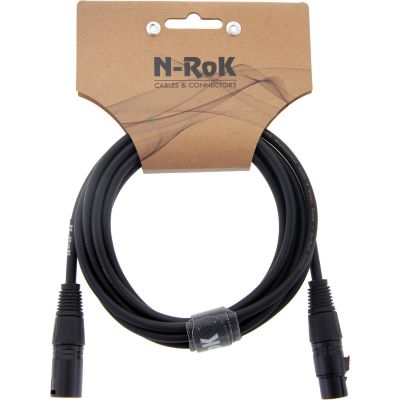
An XLR microphone connects to the microphone preamp of the audio interface with an XLR microphone cable.
Many condenser microphones additionally require 48 V phantom power.
Passive electric guitars and basses are typically connected with an instrument cable to a suitable Hi-Z input on the audio interface.
Amplifier and effect simulations can then be added inside the software.
The audio outputs of a keyboard or synthesizer are recorded through line-level inputs.
For true stereo, you normally need two separate input channels.
A MIDI controller normally sends notes and control information rather than a finished audio recording.
The actual sound is generated by a software instrument running on the computer.
In the DAW settings, select your audio interface as the input and output device.
Choose a mono track for a microphone or guitar. Use a stereo track for a true stereo source such as a stereo keyboard.
Select exactly the interface input to which the microphone, instrument or other source is connected.
Adjust gain so that even loud passages remain clean and do not overload the digital recording.
Check through headphones whether the live signal, playback and monitoring level are comfortable. If the delay is distracting, check direct monitoring.
Record a few seconds before the real take. Check for noise, clipping, unwanted sounds and an incorrectly selected input.
Save the project file and associated audio files regularly. Important productions should additionally be backed up to a separate storage device.
| Recording | Connection | Interface Requirement | Useful Addition |
|---|---|---|---|
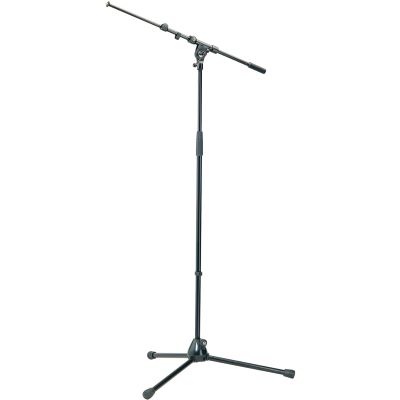
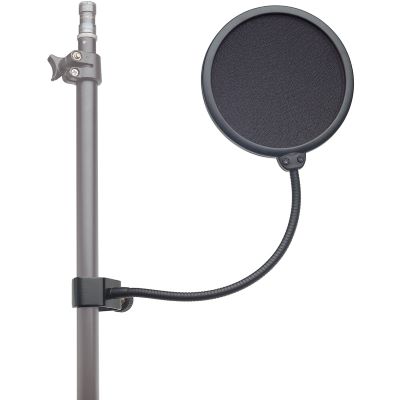
| Vocals | XLR microphone | 1 microphone input | Stand, pop filter, headphones |
| Electric Guitar Direct | 6.3 mm instrument cable | Hi-Z input | Amp simulation |
| Acoustic Guitar | Microphone via XLR | Microphone preamp | Small- or large-diaphragm microphone |
| Stereo Keyboard | 2 × line-level audio | 2 line inputs | MIDI optional |
| Software Instrument | USB MIDI | Audio interface not essential for MIDI itself | MIDI keyboard |
| Drum Kit | Several XLR microphones | 4–8+ microphone inputs | Stands and several cables |
The selection covers different routes from affordable solo recording to an expanded production workstation. First choose the product category required by your signal path, then compare individual models.

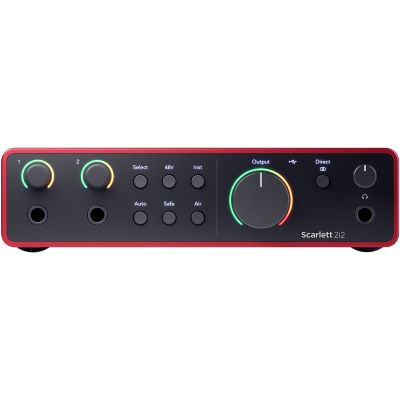
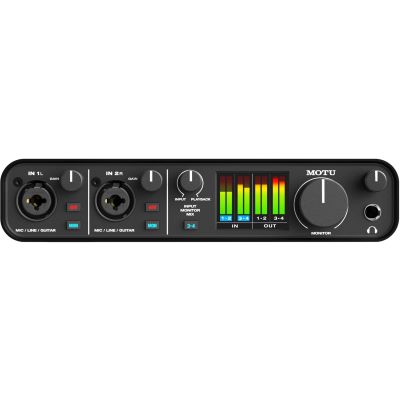
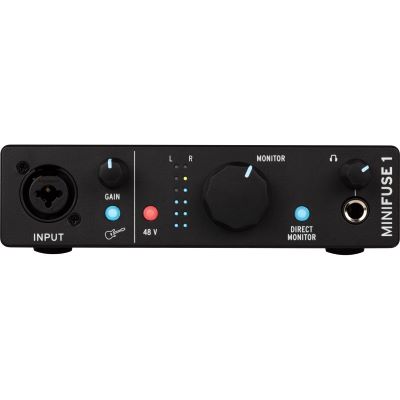
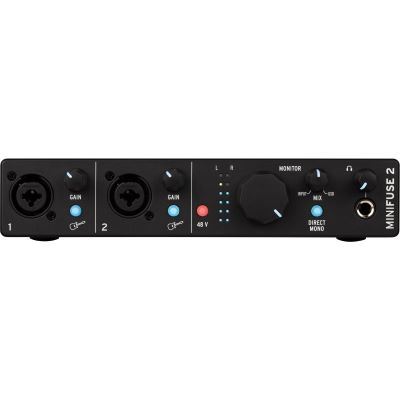
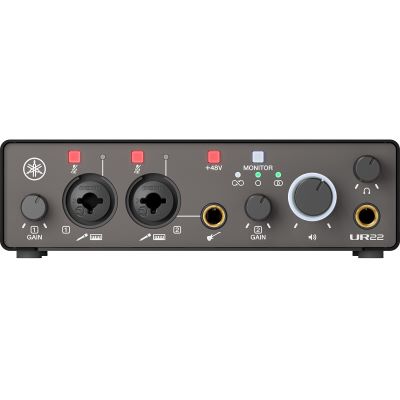
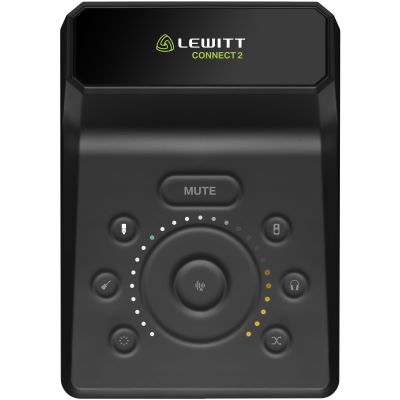
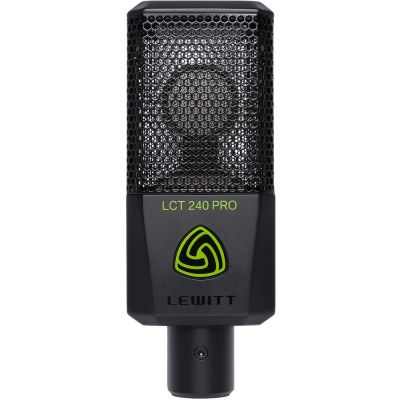
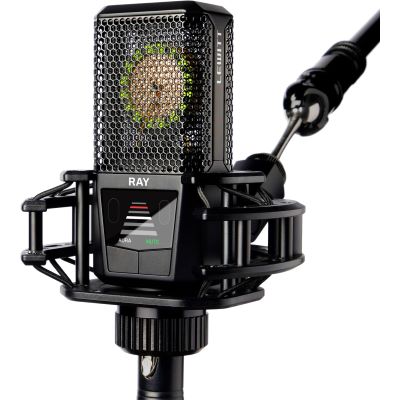
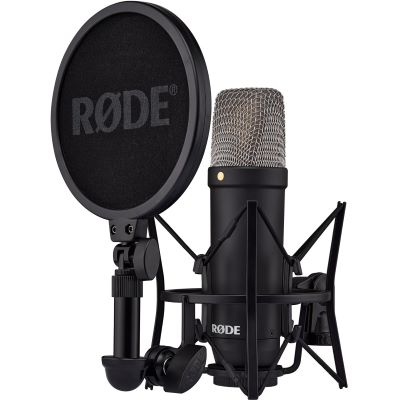
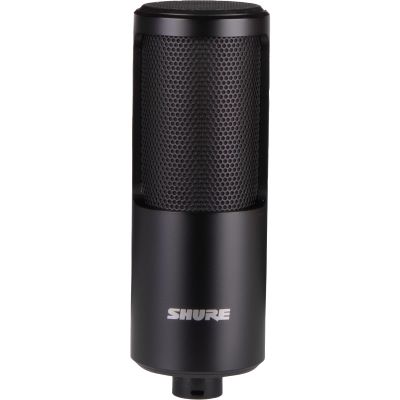
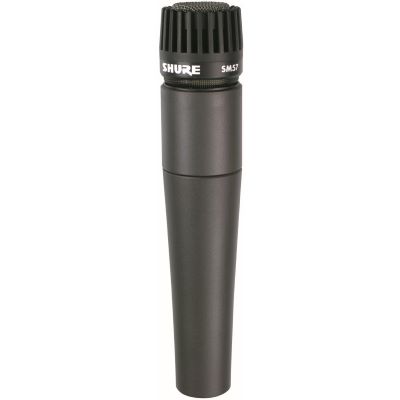
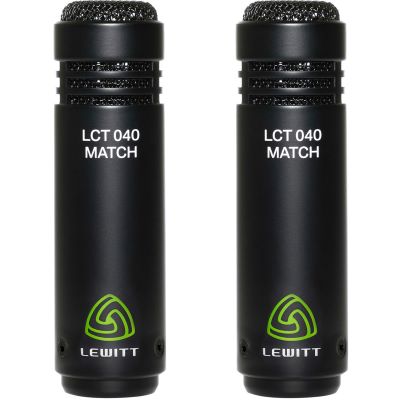
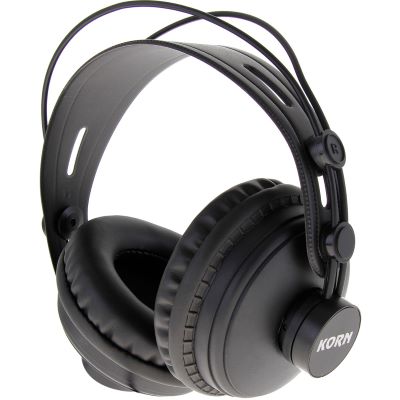
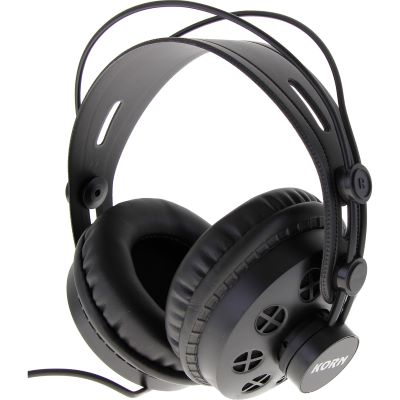
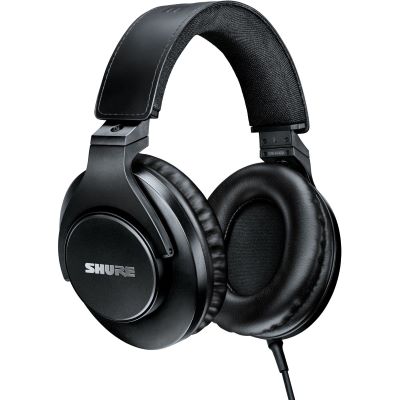
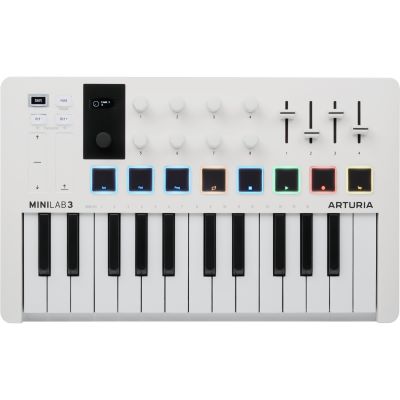
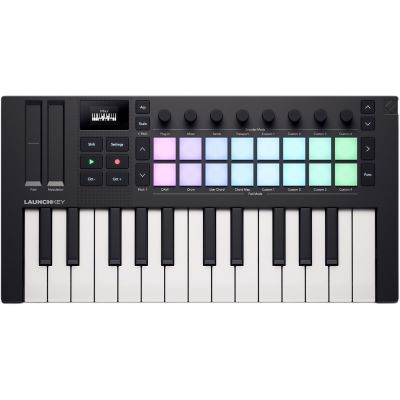
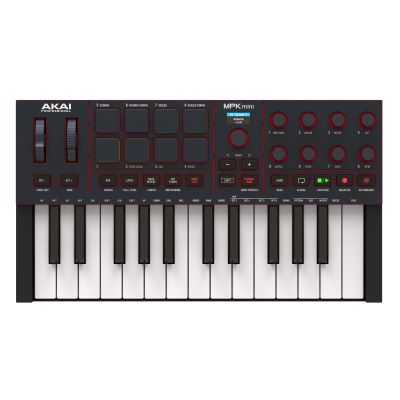

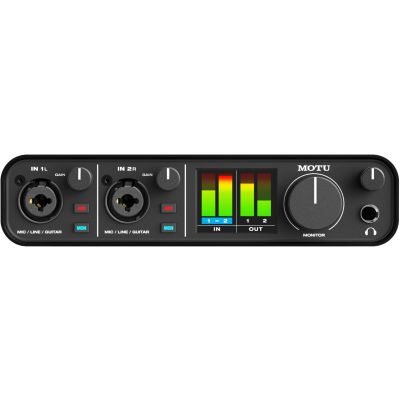
Connect microphones and instruments to the computer.
Record voices and acoustic sound sources.
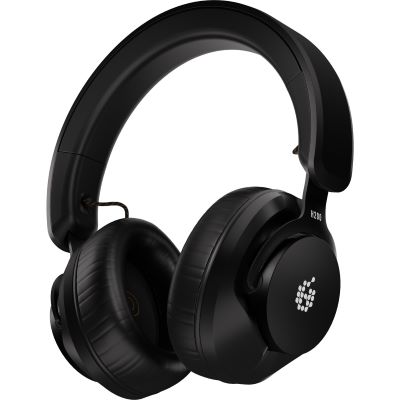
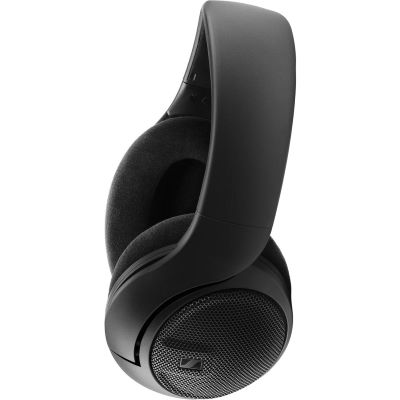
Monitor recordings and mixes without loudspeakers.
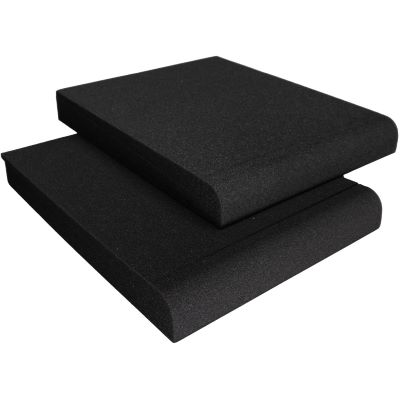
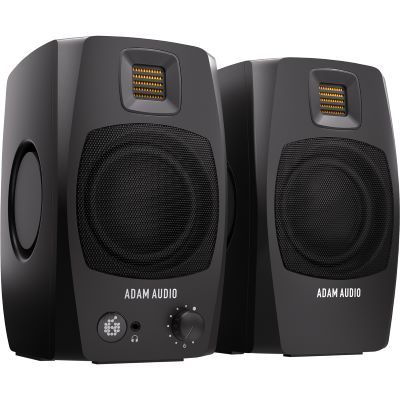
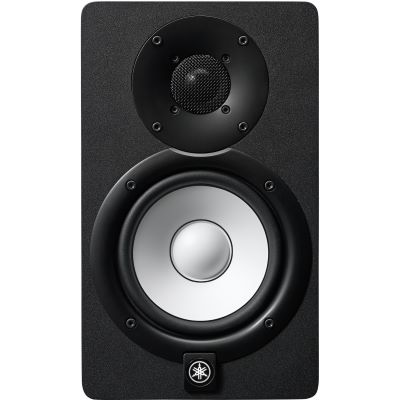
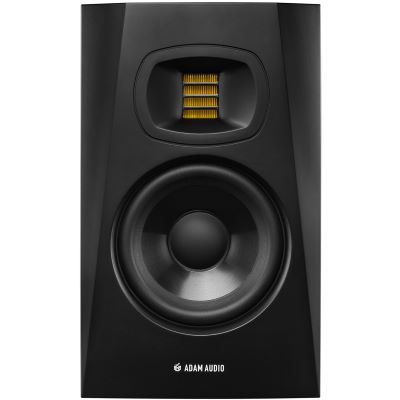
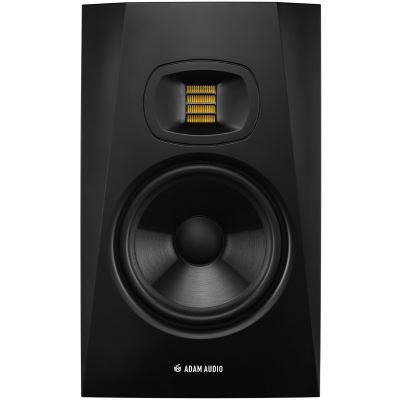
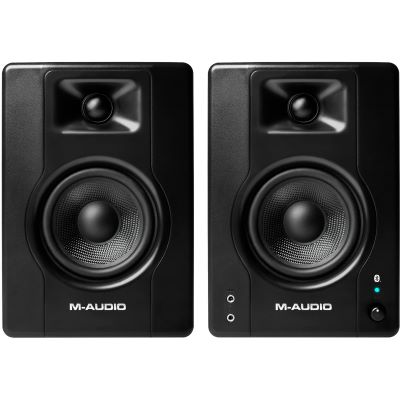
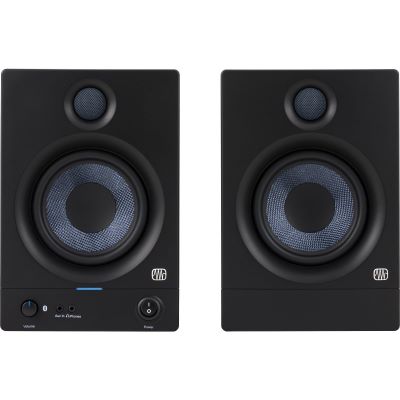
Judge stereo mixes through loudspeakers at the computer workstation.
Play virtual instruments directly into the DAW.
Record audio, program MIDI and mix songs.
Add XLR, instrument, line-level and USB connections.
Improve recording and monitoring positions deliberately.
Explore further audio interfaces, microphones, monitoring products, controllers and accessories from manufacturers relevant to computer recording.










The DAW must record exactly the interface channel to which the microphone or instrument is connected.
Digital clipping cannot be meaningfully repaired later. Leave sufficient level reserve even during loud passages.
Delayed monitoring makes timing and intonation more difficult. Adjust the driver, buffer size and direct-monitoring settings accordingly.
Important projects and associated audio files should also be stored away from the main working drive.
A computer, DAW, audio interface and headphones form the basic setup. For vocals, add a microphone, cable and microphone stand.
A USB microphone can be connected directly. A conventional XLR studio microphone normally requires an audio interface with a microphone preamp.
Yes. Use a suitable Hi-Z instrument input on the audio interface. The guitar sound can then be shaped using amplifier simulation inside the DAW.
This is latency. Check the audio driver and buffer size or use direct monitoring when the audio interface provides it.
Not necessarily when starting. Good studio headphones already allow you to record and edit. Studio monitors provide an additional reference for mixing later.
USB MIDI normally transmits note and controller data rather than automatically transmitting the keyboard's internal audio. To record the actual sound, use its audio outputs or a dedicated USB-audio function if the particular keyboard provides one.
A Digital Audio Workstation is the central software environment for recording, editing, arranging, processing and mixing music.
One or two inputs are sufficient for many solo musicians. A stereo keyboard needs two channels, while drums or complete bands can require considerably more.
Both platforms are suitable. Compatibility with the DAW, audio interface, required drivers and plug-ins is more important than choosing one operating system in general.
Check CPU load, the audio driver and the DAW buffer setting. A buffer that is too small can cause audio dropouts when the computer is under heavy processing load.
Recording music with a computer is possible with a manageable setup. An audio interface connects a microphone, guitar, bass or keyboard with the computer. The DAW stores incoming signals on separate tracks and provides editing, effects, virtual instruments and mixing.
Closed-back studio headphones are particularly practical for first recordings because the playback stays close to the musician instead of spilling strongly into an open microphone. Studio monitors can later provide an additional loudspeaker reference for mixing.
The correct input is important for every source. Microphones connect to microphone preamps, passive electric guitars to Hi-Z instrument inputs, and synthesizers commonly to line-level inputs. MIDI keyboards, by contrast, send control information and play virtual instruments inside the software.
Begin with a complete signal path and make a short test recording. Check the input assignment, recording level, monitoring and latency before starting the real take.
Additional microphones, studio monitors, MIDI controllers or acoustic treatment should be added when the current workflow creates a specific need for them.
From your first instrument and home studio to music production, DJ equipment and event technology, the central Musikhaus Korn guide provides further comparisons, buying advice and routes to compatible complete systems.